How to Clear Drafts on Marktplaats and Keep Your Inventory Clean in 2026
To clear drafts on Marktplaats, open the app or desktop site, navigate to your account profile, and select your saved listings or concepts menu. From there, select the unwanted draft and click delete. Cleaning old drafts prevents stock mix-ups when cross-listing items to channels like Vinted or eBay.
Key takeaways
- Unfinished listings saved as concepts clog your account interface and risk accidental publishing.
- Old drafts do not automatically disappear after 30 days, requiring manual deletion.
- Using centralized cross-listing tools prevents you from needing to save platform-specific drafts.
- Keeping inventory records clean avoids stockouts when selling across multiple European marketplaces.
- Clearing digital clutter helps you stay compliant with platform performance metrics.
Managing an active inventory across European secondary marketplaces requires keeping your back-end dashboard organized. When you list items frequently, you often start filling out listing forms without hitting publish immediately. Marktplaats saves these unfinished listings automatically as drafts or concepts. Over time, these drafts pile up, creating clutter that slows down your daily listing routine and increases the risk of listing outdated items.
Whether you are clearing out expired fashion items, cleaning up old electronics, or preparing to sync fresh inventory from automated tools, knowing how to clean up your workspace is essential. According to guidelines provided by Marktplaats Help & Info, keeping your account free of obsolete data is a core part of efficient store management. Below is the complete walkthrough for finding, managing, and wiping your unwanted drafts on Marktplaats for 2026.
Why Do Drafts Pile Up on Marktplaats and How Do They Impact Your Reselling Workflow?
Every professional reseller knows that time equals money. When you source items from thrift stores, garage sales, or liquidation pallets, you often photograph and draft descriptions in batches. You might snap photos of twenty items on your phone, upload them to your Marktplaats account, write titles, set prices in euros, and then walk away before finalizing the post because you need to check shipping dimensions or weigh a parcel.
Marktplaats stores these partially completed forms in a dedicated queue. If you do not publish or delete them, they sit there indefinitely. For high-volume sellers, this backlog becomes unmanageable. You might have drafts from six months ago for items you already sold elsewhere. When you return to list new stock, scrolling past dozens of dead drafts wastes valuable seconds.
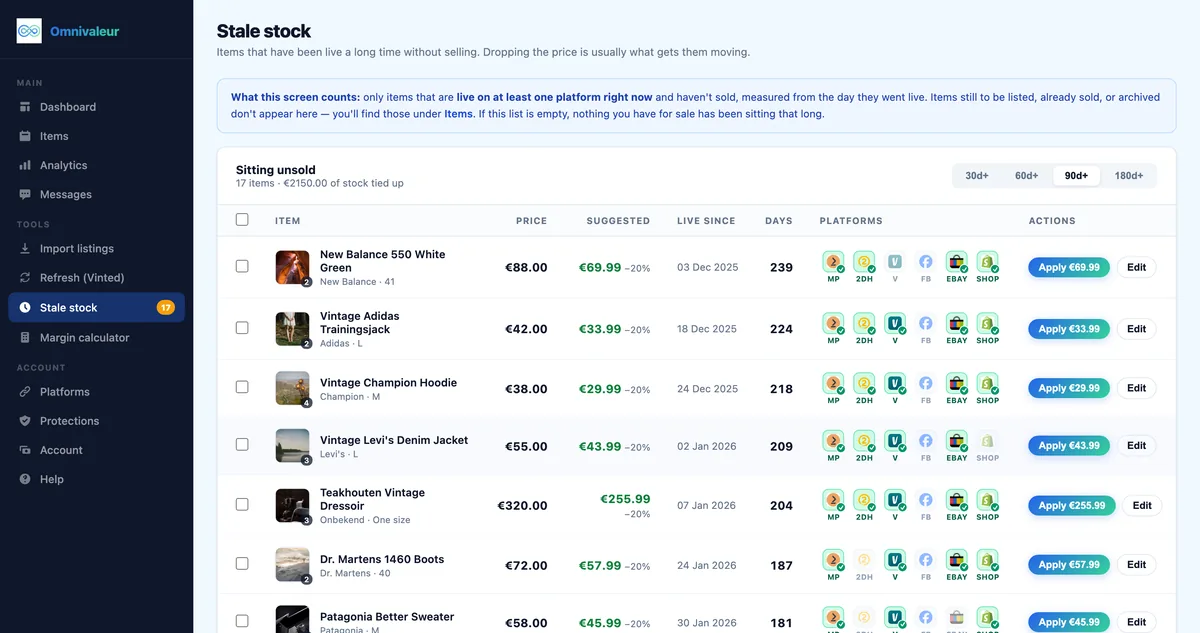
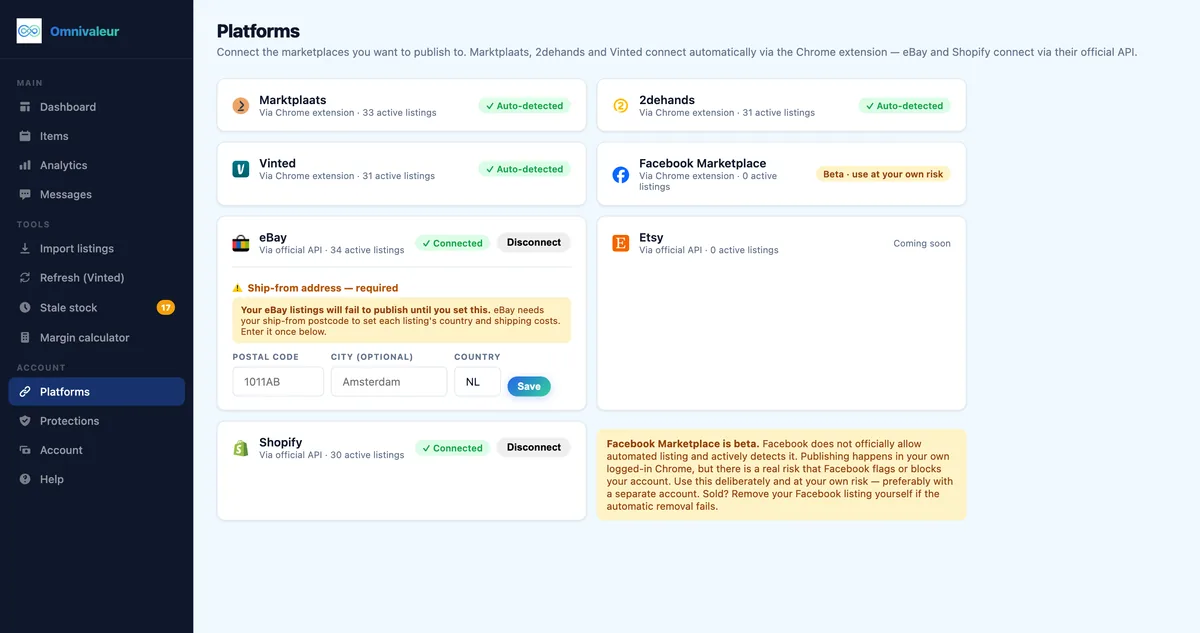
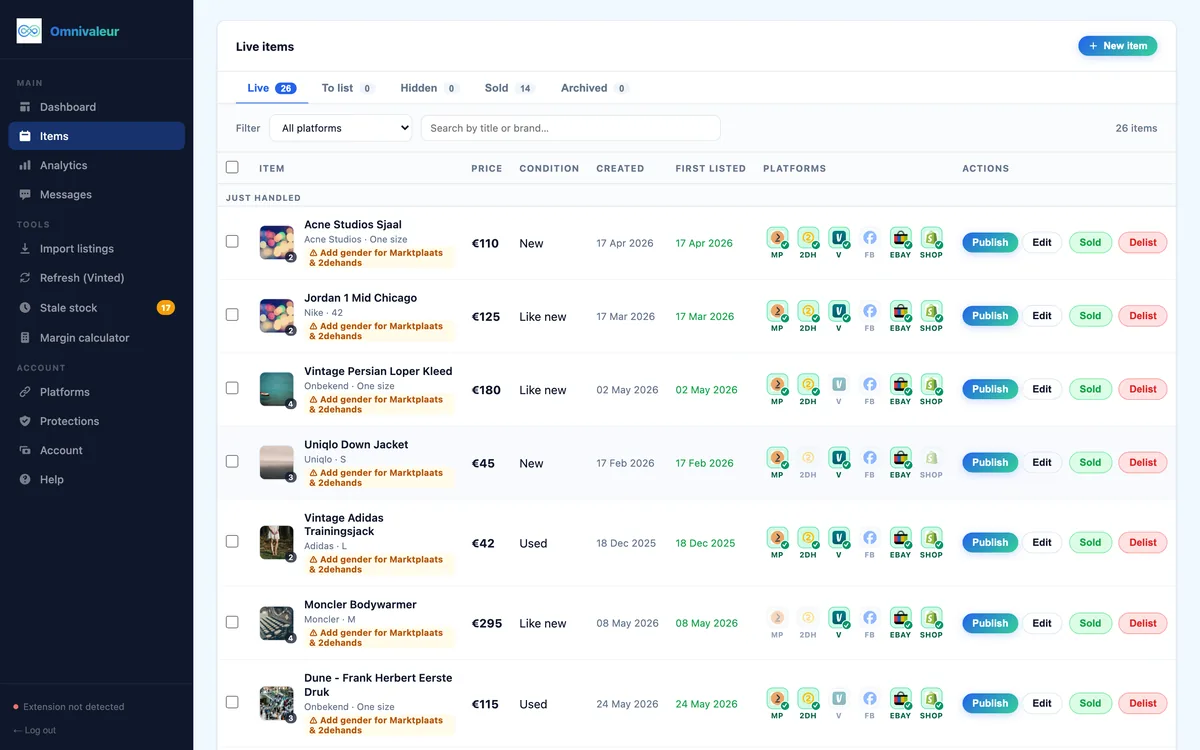
Worse, cluttered drafts lead to cross-listing errors. If you use multi-channel software like Omnivaleur, which publishes to seven channels from one intake form including Marktplaats, 2dehands, Vinted, eBay, Shopify, WooCommerce and Facebook Marketplace (beta), keeping your local drafts aligned with your actual physical stock is paramount. A single item in Omnivaleur typically carries 3-5 active listings at once, and the app tracks each platform status separately. If you leave lingering drafts on Marktplaats that resemble active stock, you risk accidentally resurrecting a sold item, leading to canceled orders and frustrated buyers.
Where Can You Find Your Saved Drafts Within the Marktplaats App and Desktop Interface?
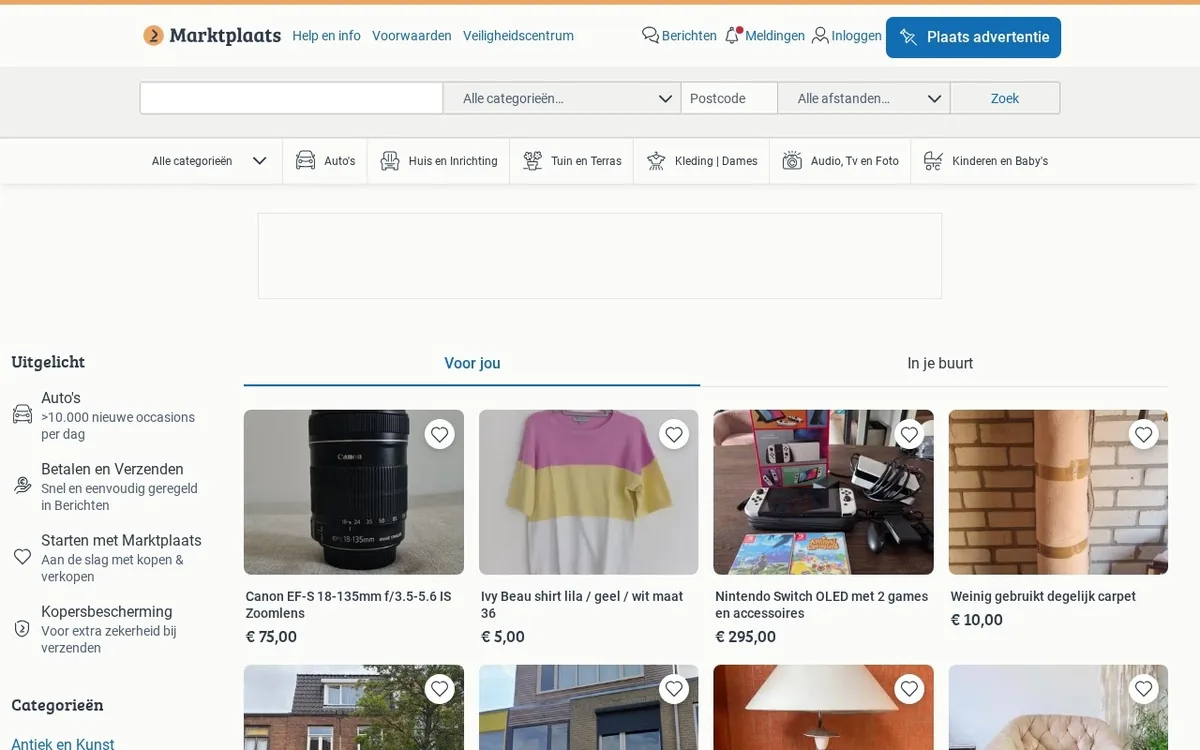
Finding where Marktplaats hides your unfinished work is the first hurdle. The platform updates its user interface regularly to streamline buying and selling, which occasionally moves menu items around. As of 2026, accessing your drafts requires navigating directly to your profile management screen.
On the desktop website, log into your account and click on your profile name in the top right corner. From the drop-down menu, select Mijn Advertenties (My Advertisements). Within this dashboard, you will see several tabs separating your active ads, paused ads, sold items, and your drafts or concepts, often labeled as Bewaard (Saved) or Concepten.
On the mobile app for iOS or Android, tap the profile icon on the bottom navigation bar. Look for the section titled Mijn Marktplaats and tap into your listings overview. Scroll horizontally across the filter tabs at the top of your listings page until you find the draft category. If you cannot find any drafts listed, it usually means you have no unfinished listings currently stored in your session cache, or they were cleared automatically after a major system update.
What Are the Step-by-Step Instructions to Permanently Delete Unwanted Drafts?
Once you locate your backlog of drafts, wiping them out takes only a few seconds per item. Follow these direct steps to clear your dashboard:
- Open your browser or the Marktplaats app and log into your seller account.
- Navigate to your Mijn Advertenties dashboard and select the Concepten or drafts tab.
- Review the list of unfinished items. Check the thumbnail, title, and last modified date to ensure you are deleting the right items.
- Click or tap on the menu dots next to the specific draft you want to remove.
- Select Verwijderen (Delete) from the options menu and confirm the prompt.
Note that Marktplaats does not currently offer a native "Select All and Delete" button for drafts on the standard consumer interface. If you have fifty stale drafts from a wholesale lot of vintage cameras or old board games, you must delete them individually. This tedious manual cleanup is one of the primary reasons professional sellers shift their drafting workflows away from native platform apps and into dedicated inventory management software.
What Happens to Your Photos and Descriptions When You Clear Your Drafts?
A common concern among resellers is data loss. When you hit delete on a draft, does Marktplaats archive your images, or are they gone forever? The answer is absolute: once you delete a draft on Marktplaats, the associated text, pricing data, category selections, and uploaded image files are permanently wiped from their staging servers.
If you uploaded high-resolution photos directly inside the Marktplaats app without saving them to your phone's camera roll first, deleting that draft means those images vanish. For items where you spent time editing photos, adjusting lighting, or writing keyword-rich descriptions, losing that data hurts.
This is why disciplined resellers maintain a master local archive or use external tools. When you centralize your listing creation, your master copy lives safely in your own inventory database rather than sitting vulnerable in a platform's temporary cache. If you are preparing items across categories, maintaining organized records is as vital as knowing how to organize inventory for reselling. Never rely on marketplace draft folders as your permanent storage solution for product photography.
- ✓log into your seller account on your browser or the marktplaats app
- ✓navigate to your mijn advertenties dashboard and select the concepten tab
- ✓review the list of unfinished items to ensure you are deleting the right ones
- ✓click or tap on the menu dots next to the specific draft you want to remove
- ✓select verwijderen from the options menu and confirm the prompt
How Do Marketplace Draft Limits Affect High-Volume Commercial Resellers?
Marketplaces impose various invisible limits to manage server loads, and draft storage is no exception. While private sellers rarely notice these thresholds, commercial resellers listing hundreds of items monthly often run into invisible ceilings where old drafts fail to save or overwrite each other unpredictably.
When your account hits a soft limit for stored concepts, the app may throw silent errors—failing to save new drafts or glitching when you try to switch categories. Furthermore, if you operate a growing reselling business, you must keep an eye on statutory reporting limits. Under European tax transparency laws enforced across all member states, platforms must report seller data once you cross specific transaction thresholds. Review the official guidelines from the European Commission DAC7 overview or local tax updates like the Belastingdienst DAC7 information for sellers to ensure your sales volume remains fully compliant.
Keeping a clean draft folder ensures your account status reflects only genuine, active intentions to sell. If you scale up your operation, understanding broader platform economics, such as those detailed in our guide on Marktplaats Fees Explained: Complete 2026 Reseller Guide, will help protect your profit margins against unexpected insertion or bumping charges.
How Can You Prevent Draft Clutter and Streamline Your Multi-Channel Workflow?
The best way to clear drafts on Marktplaats is to stop creating them in the first place. Relying on native app drafts is an outdated workflow that leaves you vulnerable to data loss, accidental double-selling, and wasted hours clicking through repetitive menus.
Modern European resellers utilize unified listing hubs to draft items once, optimize them for multiple platforms, and push them live simultaneously. Instead of wrestling with Marktplaats drafts, you create your listing inside a specialized dashboard. If an item sells on Vinted, the inventory sync engine automatically delists it everywhere else, eliminating the ghost listings that cause so many headaches.
Whether you are trading high-end fashion, electronics, or collectibles, mastering your digital workspace saves hours every week. To explore how automated syncing compares with manual draft management, take a look at our transparent evaluation in the Omnivaleur vs Crosslist: Honest 2026 Reseller Comparison.
Comparison of Draft Management Across Major Reselling Platforms
| Platform | Draft Storage Limit | Auto-Expiration | Batch Delete Available |
|---|---|---|---|
| Marktplaats | Variable / Soft capped | No (Manual only) | No |
| Vinted | Limited by device cache | No | No |
| eBay | Up to 5,000 drafts | After 30-90 days | Yes (Desktop bulk tool) |
| Omnivaleur Hub | Unlimited cloud catalog | Permanent master record | Yes (Instant batch control) |
As shown in the table above, legacy platforms like Marktplaats and Vinted offer minimal tools for managing unfinished work. Transitioning your catalog management to a centralized system ensures your product details are never trapped inside a single app's fragile draft folder.
Frequently asked questions
Can I recover a draft on Marktplaats after I delete it?
Do unfinished drafts on Marktplaats count toward my free listing limits?
Why are my drafts disappearing automatically on Marktplaats?
How many drafts am I allowed to save on my Marktplaats account?
Is it better to save drafts inside Marktplaats or use an external tool?
Keep reading

Stop copying listings by hand
Omnivaleur publishes your item to every platform at once and syncs stock automatically when something sells.
Start free trial